November 14th, 2025
New
Improved
Upgraded
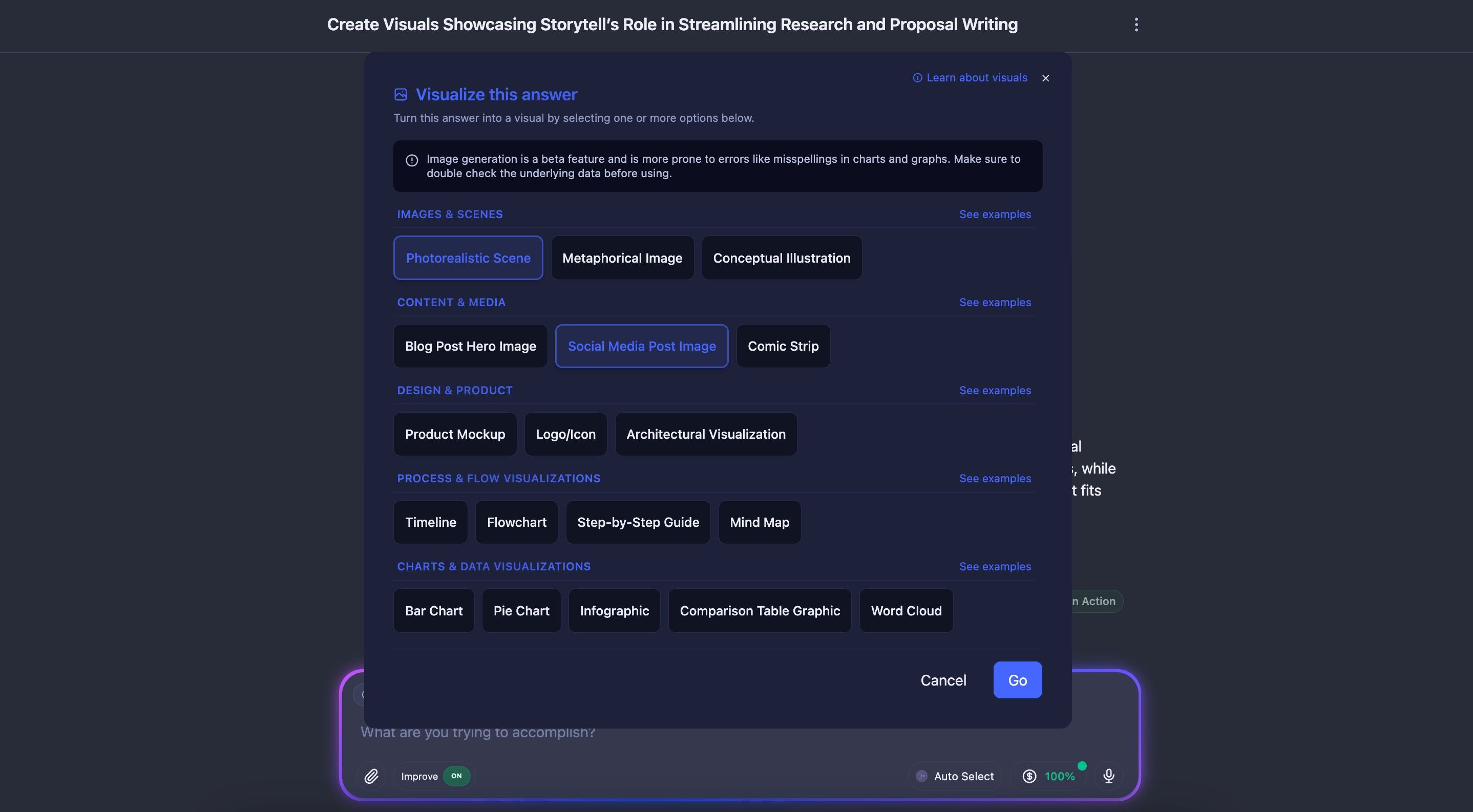
Turn any Storytell response into a visual with 1-click image generation
You can now turn any Storytell answer into a visual in one click. From photorealistic scenes to charts, product mockups, and metaphorical illustrations, Storytell helps you bring insights to life instantly without writing a prompt.
This is perfect for reports, presentations, stakeholder alignment, and anywhere visuals help explain your thinking.
Learn more → Create images and infographics with Storytell
Choose from dozens of visual styles
Click the Visualize button on any answer to open a new menu of visual types.
Pick the style you want, hit Go, and Storytell handles the rest.

You can generate visuals across a wide range of categories, including:
Images & Scenes
Photorealistic Scene
Metaphorical Image
Conceptual Illustration
Content & Media
Blog Post Hero Image
Social Media Post Image
Comic Strip
Design & Product
Product Mockup
Logo/Icon
Architectural Visualization
Process & Flow Visualizations
Timeline
Flowchart
Step-by-Step Guide
Mind Map
Charts & Data Visualizations
Bar Chart
Pie Chart
Infographic
Comparison Table Graphic
Word Cloud
Artistic
Character Portrait
Abstract Art
Each option is optimized to turn the underlying answer into the best possible visual, from literal to conceptual to metaphorical.
Learn more → Types of images you can create
⚠️ Important: Image generation is still in beta and may produce occasional misspellings or errors in chart-heavy visuals. Double-check any data before presenting or sharing.
Generate multiple visuals at once
You can choose any response, click Visualize, and then select the visual styles you want. Hold Shift to select multiple styles at once. Storytell will generate a separate visual for each style you choose, which is useful for exploring different angles, illustrating multi-step explanations, or creating variations for a deck.
Visualize your uploaded assets
You can now generate visuals directly from any file you upload to Storytell, as well as any Concept created from your assets.
Open your Assets or Concepts view, and you’ll see a Visualize button next to each item. Choose the visual styles you want, and Storytell will create images based on the content of that asset or Concept.

This is especially useful for turning long documents, transcripts, research notes, or summaries into clear visuals you can use in presentations or reports.
Works without prompting — but prompts still work
Behind the scenes, Storytell is simply crafting prompts for you.
🚀 Pro-tip: If you prefer full control, you can still write your own custom prompts for image generation. 1-click visuals are meant to be fast and reliable, but power users can always go deeper.
Built on Storytell’s smart image model routing
You get access to the same high-performance image models as manual image generation.
Storytell automatically picks the best model for your chosen visual type, or you can target a model manually in your own prompts.
Learn more about the underlying models → Image generation
Keyboard shortcuts
We've added the keyboard shortcuts power users have been asking for. Now you can fly through Storytell without touching your mouse:
CMD+K (Ctrl+K on Windows/Linux): Jump to a fresh SmartChat from anywhere. Resets everything and gets you to a clean homepage instantly.
SHIFT+CMD+P: Toggle your project switcher. Perfect when you're juggling multiple projects.
SHIFT+CMD+K: Open or close your knowledge panel without breaking your flow.
Each shortcut shows helpful tooltips so you don't have to memorize them. They work intelligently too—CMD+K won't interfere when you're typing in the prompt editor, but it'll work from anywhere else in the app.
Who this helps: Anyone who lives in Storytell and wants to move faster. Especially useful if you're switching between projects frequently or need quick access to your knowledge base.
Prompt history

Your prompts now have a memory. Navigate through your previous prompts using up/down arrow keys (just like in terminal), and Storytell automatically saves any unfinished prompts as drafts.
Here's how it works:
Up/Down arrows: Browse through your last 100 prompts across all SmartChats
Auto-draft saving: Start typing something, navigate away, come back later and your draft is still there
Visual indicators: Small arrow buttons appear when you have history available
Smart behavior: In multi-line prompts, it'll first move your cursor to the start/end, then navigate history
Why this matters: We noticed people often want to build on previous questions or reuse similar prompts. Now instead of retyping everything, you can just pull up what you've asked before.
✨ Improvements
"All Knowledge" is now "Project Knowledge"

We've renamed this throughout Storytell to better reflect what it actually represents—the knowledge within your specific project, not literally everything. The functionality remains the same, but the language is clearer.
Knowledge panel experience
Improved file uploads: Drag-and-drop or click to upload files, with better progress tracking and automatic Knowledge pane opening
Smarter label management: Better wrapping for assets with many labels, plus streamlined label creation in modal dialogs
Project context everywhere: Collection names now clearly show which project they belong to