November 14th, 2025
Improved
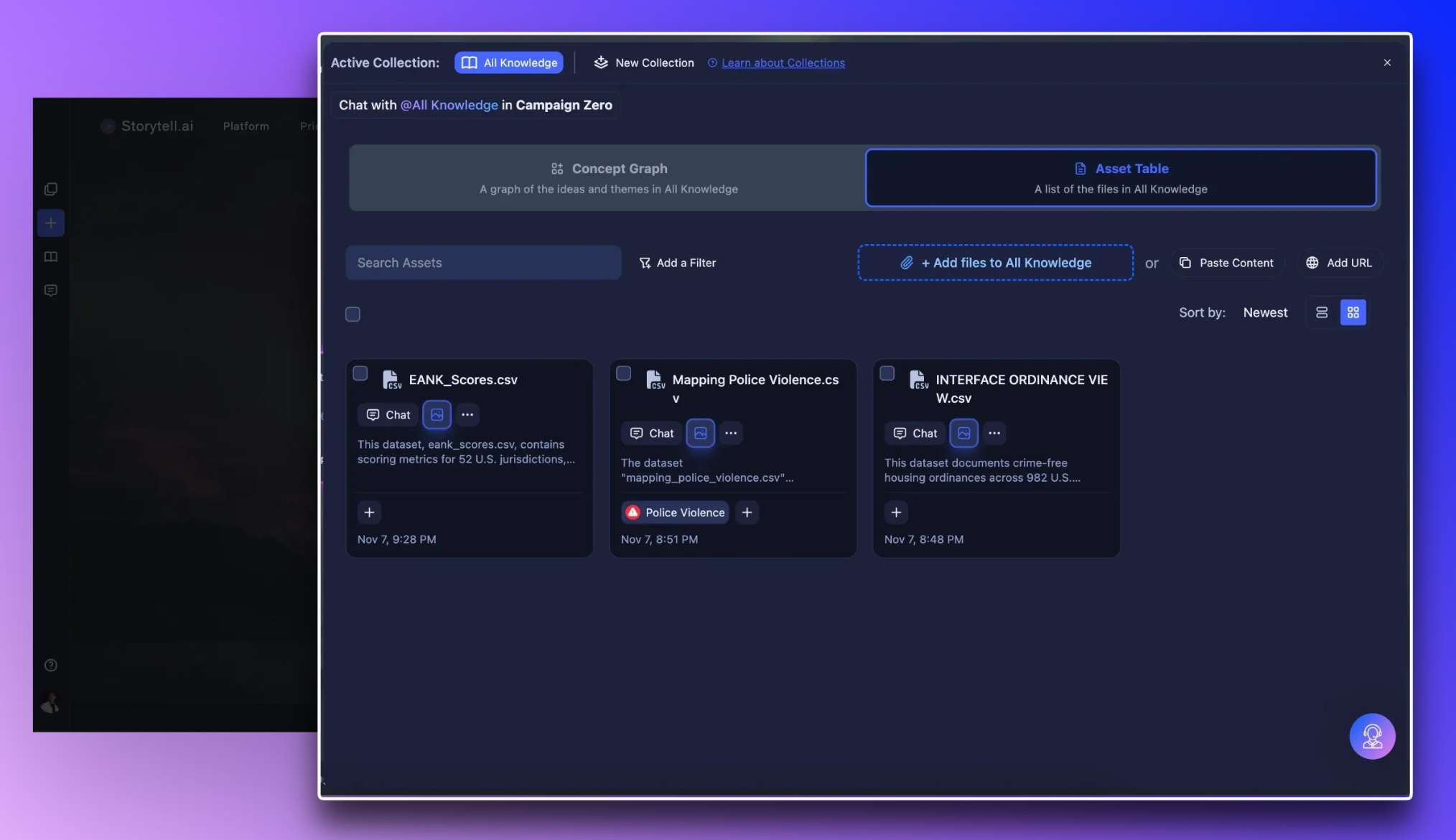
Browse and manage your assets with a clearer, more flexible Knowledge Pane layout
The asset panel now gives you more control over how you view, sort, and work with your assets. The updated layout makes scanning visuals and organizing large sets of files much easier.
Choose the view that fits your workflow
You can now switch between a traditional row view and a new card view.
Card view offers a more visual, grid-style layout that’s great for browsing mixed media. Your preferred view automatically sticks as you work.

ⓘ Tip: Try switching to card view when working with images or decks. It’s a faster way to visually scan your content.
Select assets in fewer clicks
Shift-clicking now lets you select a range of assets at once.
It’s a simple way to speed up bulk operations when organizing or labeling content.

Sort by labels, not just time
Two new sort options help you find assets based on how they’re tagged:
Most Labels
Fewest Labels
It’s an easy way to identify highly tagged content or spot items that still need labeling.

See more Labels at a glance
Labels now expand intelligently and show as many as will fit before collapsing the rest.
This gives you more context without cluttering the layout.
A clearer empty state
When you haven’t added any assets yet, you’ll now see clearer guidance with quick actions to paste content, add a URL, or upload files—making it easier to get started.
