October 7th, 2025
New
Improved
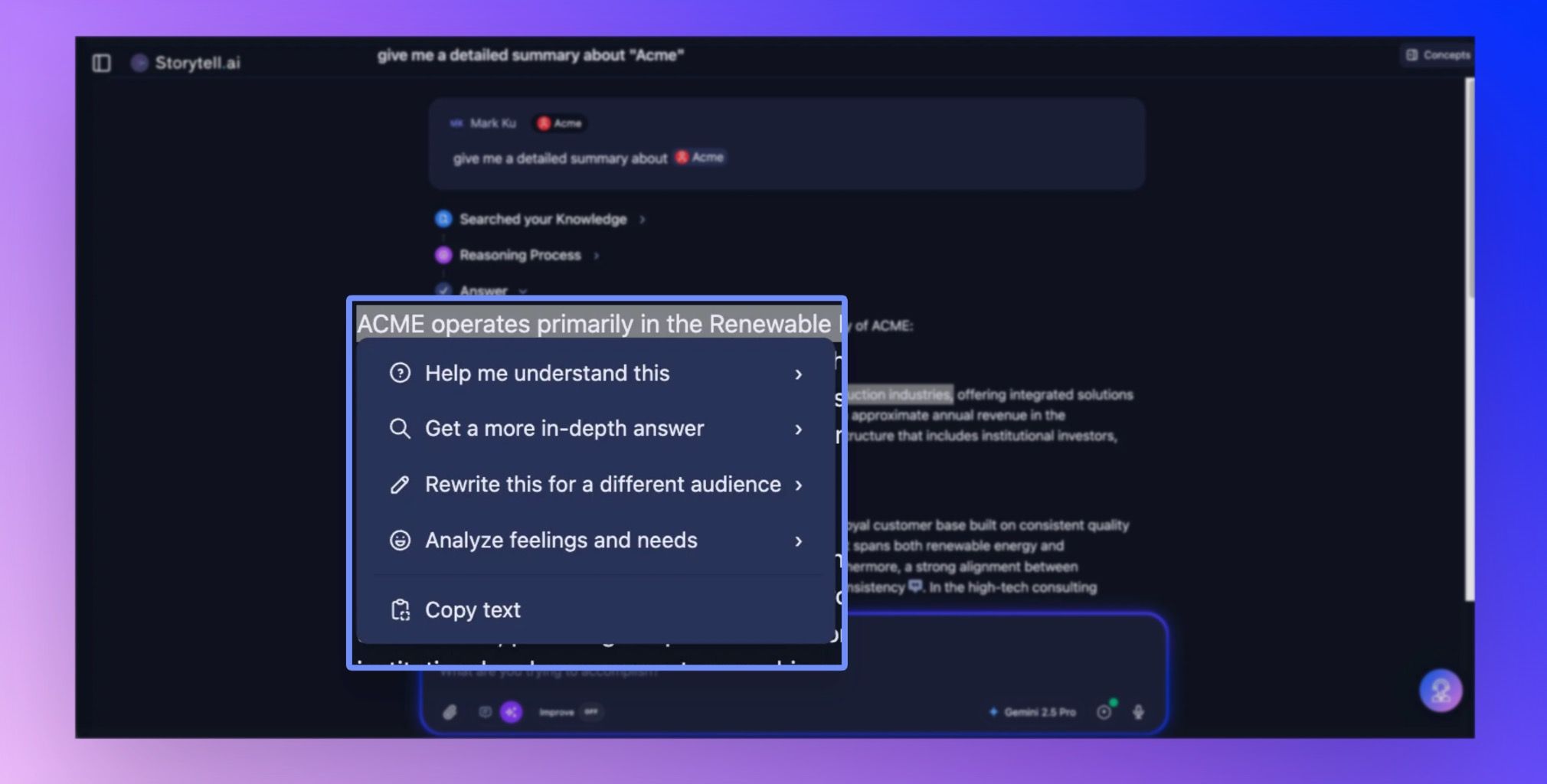
Storytell response menu
We've been listening to your feedback about making Storytell even more interactive and intuitive. This release brings in features from the previous version of Storytell that will improve how you work with your data.
Storytell response menu - Go deeper into any answer
Ever get a great response from Storytell and think "I wish I could explore this specific part further" or "Can you explain this differently?" Now you can!
When you select any text in SmartChat™ responses, a contextual menu appears with powerful options to:
🧠 Help me understand this
Explain like I'm five years old
Explain like I'm in middle school
Explain like I'm in high school
Why does this matter?
What's happening under the surface here?
🔍 Get a more in-depth answer
Get more detail on this
Find similar content like this
✏️ Rewrite this for a different audience
For brevity
For an executive audience
For a less technical audience
For a more technical audience
For different personality types (complete Myers-Briggs options!)
💭 Analyze feelings and needs (perfect for conversations, feedback, or interpersonal content)
What feelings and emotions were expressed?
What met or unmet needs were shared?
How could this have gone better?
What's the person's inner experience?
How it works: Simply highlight any text in a Storytell response, choose your option from the menu, and Storytell will generate a focused follow-up right in your thread.
Get started here: Storytell response menu
Easier file uploads with a new full-screen dropzone

You can now upload files to your conversation by dragging and dropping them anywhere on the screen. As soon as you start dragging a file from your desktop, the entire screen changes into a dropzone, making it clear exactly where you can drop your files. This update makes adding files faster and eliminates the need to hunt for a specific upload button.
How this helps you:
Just drag a file over the window and drop—it’s instantly attached to your conversation. No extra clicks or searching needed.
What you need to do:
No setup required. Just try dragging any file from your computer onto the main window.