February 7th, 2026
New
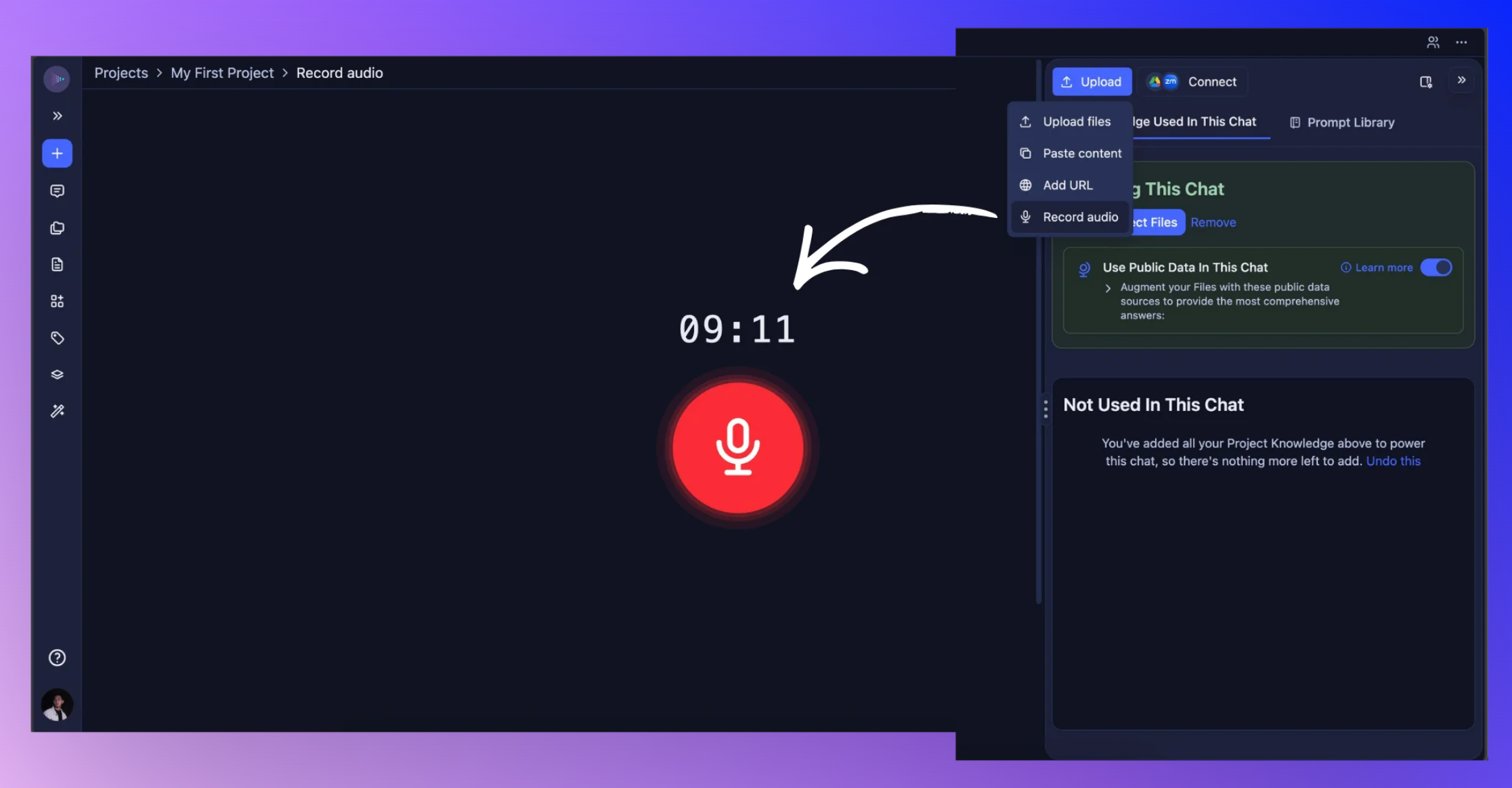
Record and upload audio directly to Storytell
You can now record audio using the Record option in the upload panel and add it to your project. This makes it easier to capture meetings, interviews, or quick voice notes and bring them into Storytell without recording elsewhere first.
Get started at: Record and upload audio directly to Storytell
What’s new
Record from the Upload Panel: Use the Record option to capture audio using your device’s microphone and save it to your project.
Microphone Permission via Browser: Storytell uses your browser to access your device’s microphone. If you haven’t already, your browser will prompt you to allow microphone access.
Manual Upload After Recording: After you finish recording, you’ll need to confirm and upload the recording for it to be added as an asset.
Why this matters
Recording and uploading audio is now a single, streamlined flow. You can capture audio in the moment and intentionally upload it to Storytell when you’re ready.
What to know
Your browser must be allowed to access your device’s microphone
Recordings are not uploaded automatically—you’ll need to click upload after finishing the recording
While recording, avoid navigating around Storytell to prevent interruptions
If you exit a recording accidentally, you can recover it by reopening the Upload panel and selecting Record audio
Who benefits
Users capturing meetings, interviews, or voice notes
Teams working asynchronously with recorded context
Anyone who wants a simpler way to get audio into Storytell