February 17th, 2026
New
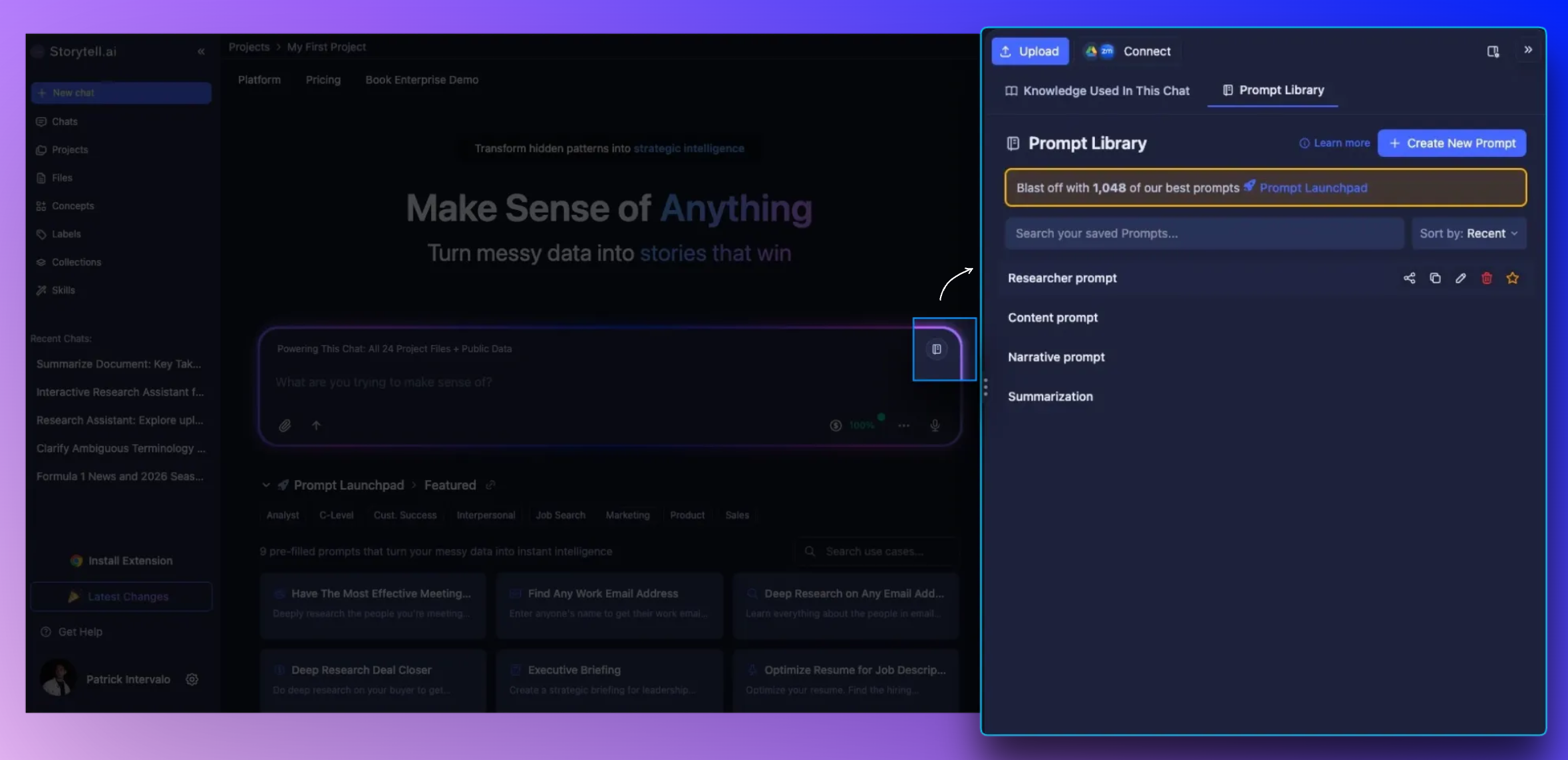
Prompt Library: Save, reuse, and manage your favorite prompts
We’ve heard from teams who spend too much time retyping prompts or digging through chat history to reuse one they wrote last week. Today, we’re solving that problem.
Get Started at: Prompt Library
The Prompt Library lets you save prompts once, reuse them anywhere, and manage them in one central place. Run analyses, generate summaries, or ask complex questions without retyping, hunting through chats, or losing consistency.
What this means for you
For analysts and researchers: Stop recreating the same queries. One prompt works across files, collections, and projects.
For team leads and knowledge workers: Keep your team aligned with consistent templates. Use @mentions and template variables (#variables) to make prompts adaptable for any dataset or context.
For recurring workflows: Save time and avoid errors by reusing proven prompts for weekly reports, client summaries, or multi-project analyses.
How it works
Opening the Prompt Library takes just a click:
From the prompt bar: Click the book icon next to the scope pill.
From the side panel: Open the “Powering This Chat” panel and select the Prompts tab.
Once open, you can:
Create a new prompt: From scratch, or pre-fill with text already in your prompt bar.
Save prompts from chat messages: Preserve @mentions and #variables for later reuse.
Apply a stored prompt: Click to load it into the prompt bar, fill in variables, adjust @mentions, then send.
Manage your prompts
Star: Mark favorites for quick access.
Edit: Update names, descriptions, or text as workflows evolve.
Delete: Remove outdated prompts to keep your library tidy.
🚀 Pro Tips
Combine @mentions with #variables to make one prompt work across multiple datasets or scenarios.
Use Dropdowns, File Pickers, or Record Audio variables to make prompts flexible for different inputs.
Star key prompts to always have your go-to templates at the top of the list.
Using your Prompt Library
Once saved, prompts can be applied anywhere:
Reference them in any chat or datasets.
Adapt them with variables and @mentions for different files or contexts.
Streamline recurring workflows, keep outputs consistent, and make your team’s knowledge reusable.
Try it out: Open your Prompt Library and save your first prompt today. We’d love to hear how it speeds up your workflow.