November 21st, 2025
New
Improved
Fixed
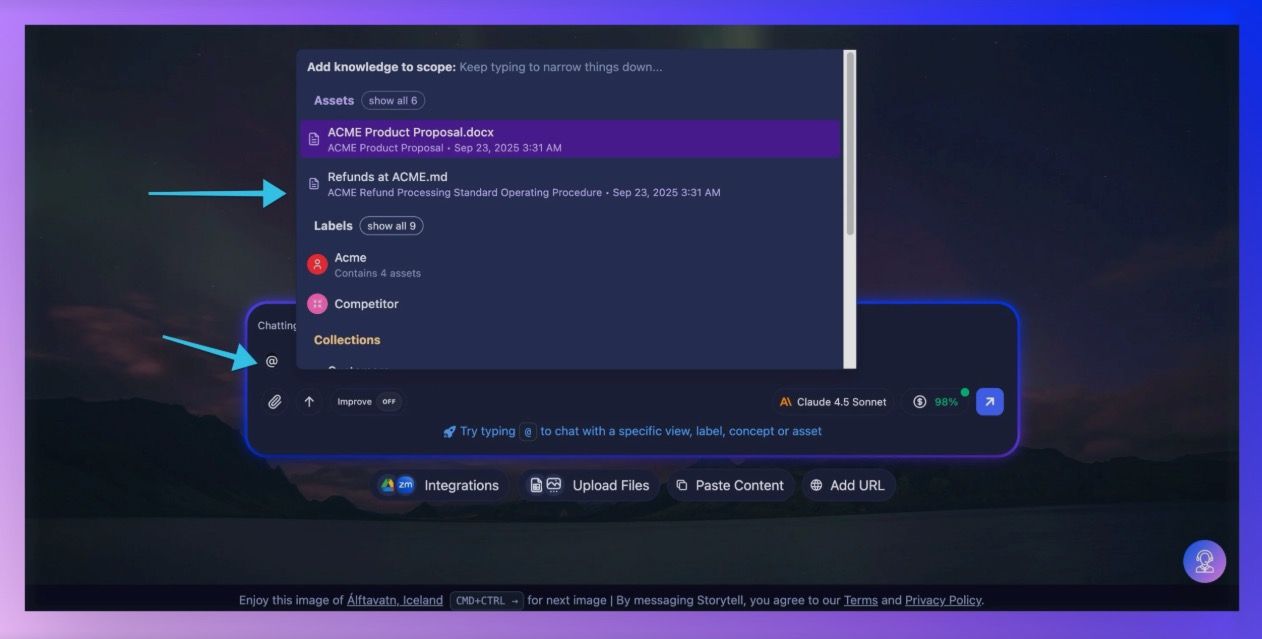
Better @mention picker
We've given our @mention autocomplete system a major upgrade that makes it both more powerful and easier to use.
Now, when you use the @ symbol to at-mention your content, the dialogue box will:
automatically select the most recent asset you added to Storytell as the default first choice. Just press "enter" to start to work with that asset
show you how many assets are in each of your labels

Storytell now shows the user what the filters are on matching Collections

What else is better:
Collections everywhere: We've renamed "Views" to "Collections" throughout the interface for clarity
Better sorting: Assets now show by most recent, everything else alphabetically
Cleaner sections: Reorganized as Assets → Labels → Collections → Concepts with bold headers
For power users: The picker now shows rich metadata like asset creation dates and Collection filter details, so you can make better choices about what to include in your prompts.
Get started: Using @mentions
"Surprise Me" visualization option
Let AI choose the best visuals for your content

Instead of choosing from dozens of chart and graphic options, you can now let Storytell analyze your content and pick the most appropriate visual styles.
How it works: Click the new "Surprise Me" option, choose how many visuals you want (1-5), and Storytell will analyze your content to create the most fitting combination – whether that's infographics for business content, charts for data, or creative visuals for conceptual ideas.
Perfect for: Anyone who wants great visuals but doesn't want to spend time deliberating over visualization types. The AI considers your content type and automatically suggests appropriate styles, from professional charts to creative graphics.
🚀 Pro-Tip: You can still click on “select the visuals yourself” to get our predetermined image styles

Get started: 1-Click creation of images and infographics
Keyboard shortcuts respect when you're typing
Shortcuts now smartly disable when you're in input fields
We've fixed an annoying issue where keyboard shortcuts (like CMD+K for navigation or CMD+Left/Right for the knowledge panel) would fire even when you were typing in input fields or the prompt bar.
What's fixed: All major shortcuts now detect when you're actively typing and politely stay out of the way. This includes chat thread navigation (CMD+1-9), knowledge panel controls, and other productivity shortcuts.
What’s new: We’ve also added a toggle for you to enable or disable Keyboard Shortcut Suggestions

Other improvements
Better error messages: Failed operations now show more helpful titles instead of generic "Chat Failed" messages
Enhanced prompt history: Your prompt history now preserves rich text elements (like @mentioned assets and labels) when navigating up and down through previous prompts
Markdown copy improvements: Better handling when copying artifacts and responses as markdown, with temporary buttons that appear after copying