March 4th, 2026
New
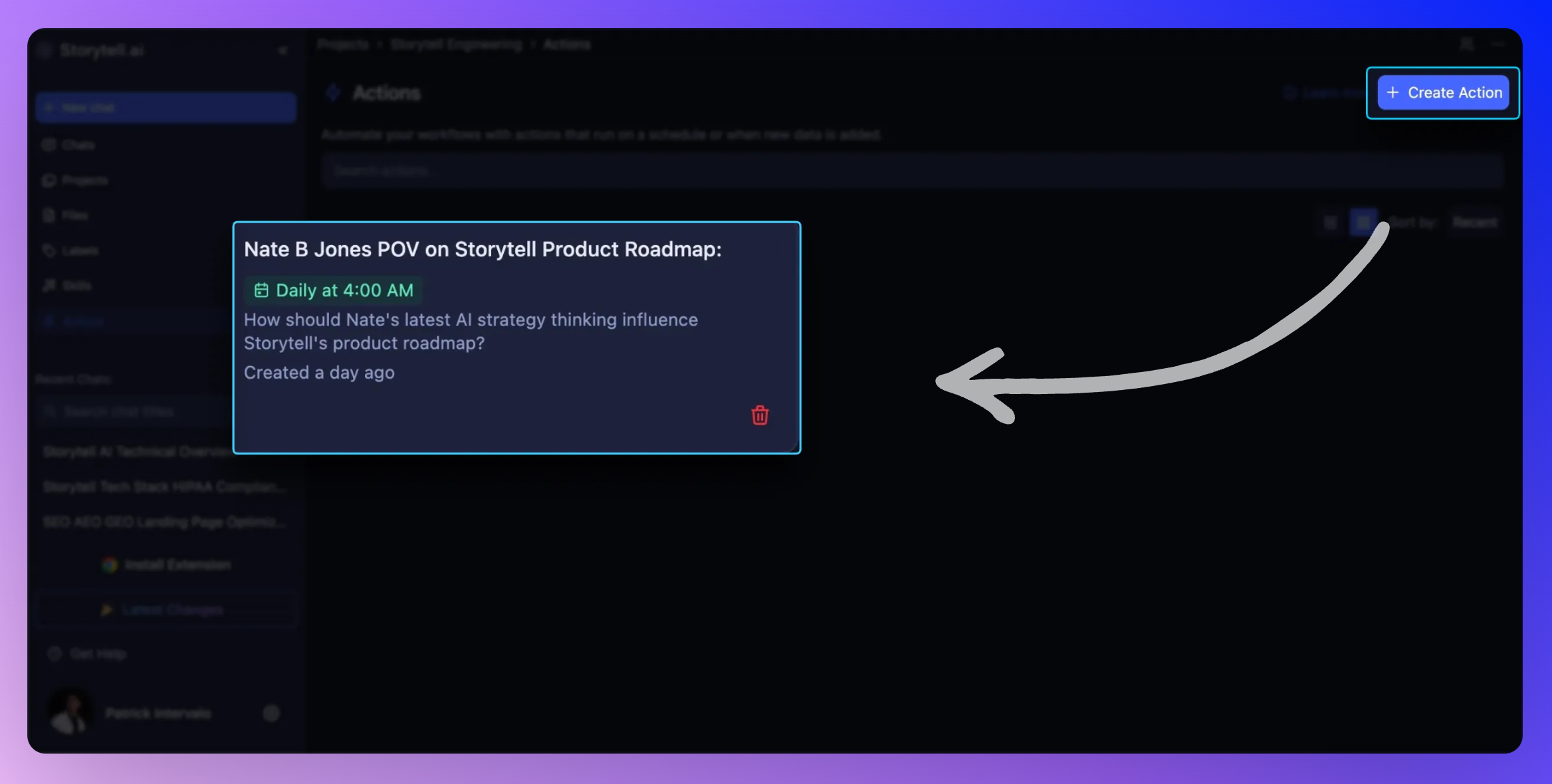
Actions: Automate your workflows so Storytell runs tasks for you
You shouldn’t have to rerun the same prompt every time a new file is uploaded or remember to generate that weekly summary before a meeting.
With Actions, you can automate repeatable workflows inside a Project. Define when something should run (on a schedule or when new data is added), write the prompt once, and Storytell handles the rest in the background.
Get started at: Actions overview
What’s new
Automated triggers
Run a prompt On a schedule (daily, weekly, monthly) or Whenever there is new source data (when a file is uploaded).
New asset or full re-run options
For new uploads, choose:
Run only on the new asset
Run on all matching assets
Create Actions from chat
Turn any completed chat response into a repeatable Action with one click—your prompt is pre-filled and ready to automate.
Scoped to your project
Actions are project-specific and use your existing Knowledge (Files, Collections, Labels, Concepts) via @mentions and #variables.
Run history and notifications
View every run in the Actions tab and optionally enable email notifications when a run completes.

Why this matters
Save time
Automate repetitive tasks like summarizing new uploads, extracting action items, or generating weekly digests.
Consistency
The same prompt runs every time—no drift, no missed steps.
Scale effortlessly
Process every new file automatically, or re-run a full project analysis on a schedule.
Work in the background
Actions run whether or not you’re online or inside the project.
How it works
Every Action has three parts:
1. Trigger
Choose when it runs:
On a schedule (set hour, day, timezone)
Whenever there is new source data (on file upload)
2. Prompt
Write the instruction Storytell runs each time.
You can:
Use @mentions to include Files, Collections, Labels, Concepts, or Skills
Use #variables to create reusable, dynamic prompts
3. Settings
Add a name and description, configure schedule details (if time-based), and optionally enable email notifications.
When the trigger fires, Storytell runs the prompt automatically. Results appear in Run history inside the Actions tab.
What to know
Actions are scoped per project. Each project has its own list.
Permissions depend on role (e.g., Owners and Collaborators can create/edit).
You can Enable or Disable an Action without deleting it.
There is no manual “Run now”—Actions execute only when their trigger fires.
Run history shows inputs, outputs, and any errors for debugging.
Common use cases
Summarize every new file uploaded
Extract action items from meeting notes every Monday
Generate a weekly project digest
Compare each new upload against a Compliance collection
Re-run a “state of the project” summary whenever new data arrives
Who benefits
Analysts processing frequent uploads
Teams that rely on recurring summaries or reports
Project leads who want predictable, hands-off workflows
Anyone looking to reduce manual repetition inside a project
🚀 Pro Tips:
Create an Action directly from a chat where you’ve already perfected the prompt.
@mention Skills (e.g., @Summarizer or custom Skills) for consistent formatting and behavior.
Use Run only on the new asset to keep processing fast and focused.
Disable Actions temporarily instead of deleting them if you’re testing changes.
After editing an Action, check Run history to confirm the next run behaves as expected.